Dashboard Domain Setup
This article explains how to expose the dashboard on a custom subdomain.
The examples use the domain home-and-outdoor.shop and the dashboard hostname dashboard.home-and-outdoor.shop. Replace these values with your own domain when you configure your installation.
Overview
A dashboard domain is a public hostname that routes browser traffic to the tracker dashboard.
To add a dashboard domain, complete two configuration steps:
- Create a Domain Name System (DNS)
Arecord for the dashboard subdomain. - Add the same hostname in the dashboard as a managed domain with purpose
Dashboard.
After the tracker detects that the DNS record points to the server, it provisions a Let's Encrypt Hypertext Transfer Protocol Secure (HTTPS) certificate and updates the Nginx web server configuration.
DNS changes are not immediate. An A record can become visible within several minutes, but a delay of a few hours is normal because DNS providers and recursive resolvers cache records.
Why HTTPS Matters
The dashboard handles credentials and campaign management data. HTTPS encrypts traffic between the browser and the server, which protects passwords, session cookies, and dashboard actions from network interception.
Modern browsers also mark plain Hypertext Transfer Protocol (HTTP) pages as insecure. A valid HTTPS certificate allows users to open the dashboard without browser security warnings.
Example Values
| Item | Example value |
|---|---|
| Example main domain | home-and-outdoor.shop |
| DNS record name | dashboard |
| Example dashboard hostname | dashboard.home-and-outdoor.shop |
| DNS record type | A |
| DNS record value | <server-ip> |
| Domain purpose | Dashboard |
After setup, the dashboard URL is:
https://dashboard.<your-domain>
Example:
https://dashboard.home-and-outdoor.shop
Prerequisites
Before you start, verify that you have the following access and information.
| Requirement | Description | How to verify |
|---|---|---|
| Installed Tracker | Tracker is installed and running | Open the dashboard URL printed by the installer |
| DNS access | You can edit DNS records for the main domain | Open the DNS settings page at your domain provider |
| Server public IP address | The IP address of the server where the tracker is installed | Use the IP address from the VDS/VPS provider dashboard |
| Tracker credentials | You can sign in to the dashboard | Sign in with the installer output username and password |
Step 1: Add DNS A Record
Add an A record that points the dashboard subdomain to the tracker server.
- Open the DNS management page for
<your-domain>. - Add a new DNS record.
- Set the record values:
| Field | Value |
|---|---|
| Type | A |
| Name | dashboard |
| Value | <server-ip> |
| Time to Live (TTL) | Default value from your DNS provider |
- Save the DNS record.
The record name dashboard creates the full hostname:
dashboard.<your-domain>
For the example domain home-and-outdoor.shop, the full hostname is:
dashboard.home-and-outdoor.shop
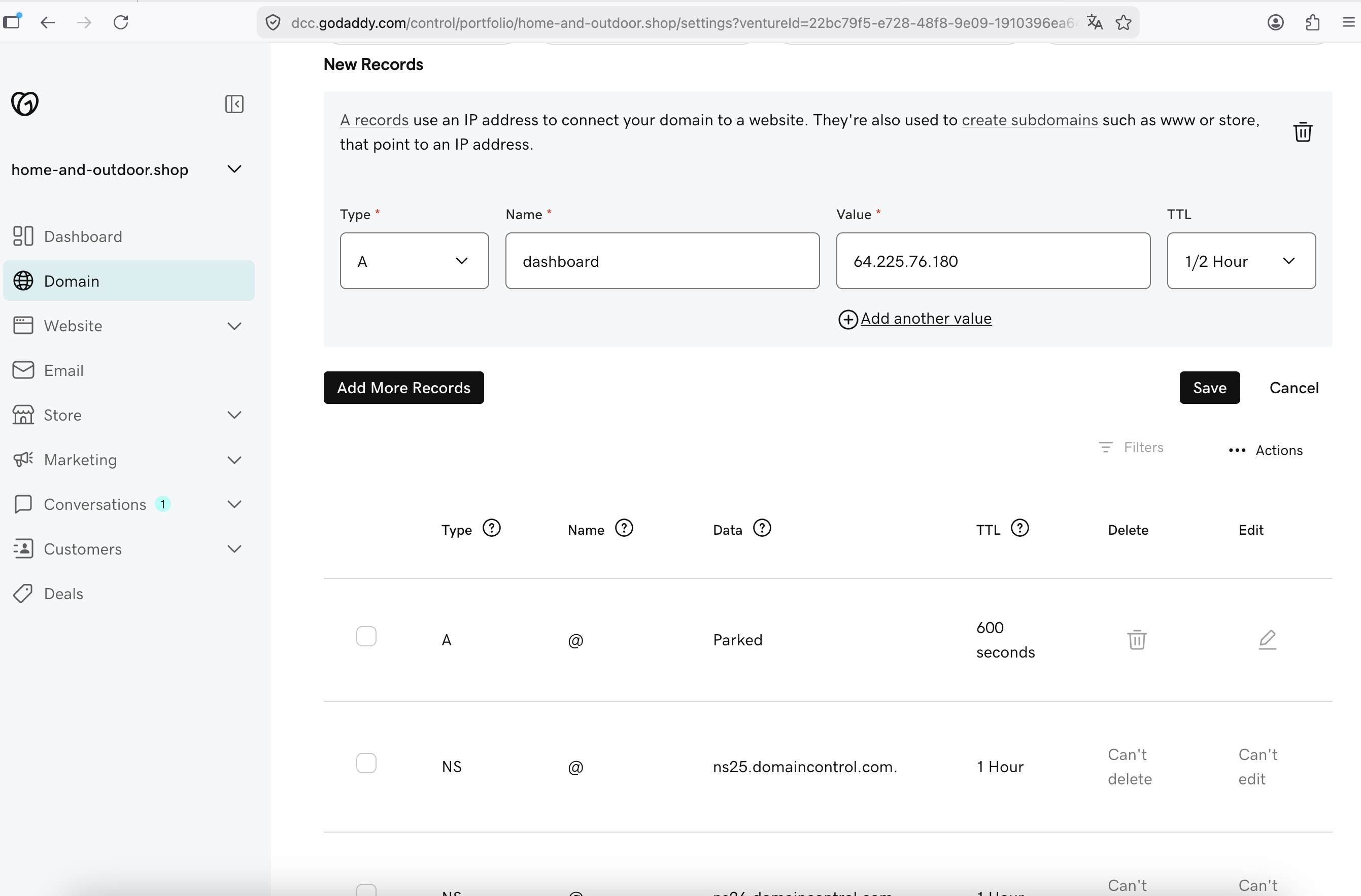
Wait for DNS propagation after saving the record. A delay of a few hours is normal.
Step 2: Add Dashboard Domain
Create a managed domain record in the dashboard.
- Open the dashboard.
- Go to
Domains. - Click
New Domain. - Set
Hostnameto:
text
   dashboard.<your-domain>
Example:
text
   dashboard.home-and-outdoor.shop
- Set
PurposetoDashboard. - Keep
Disabledunchecked. - Click
Save changes.
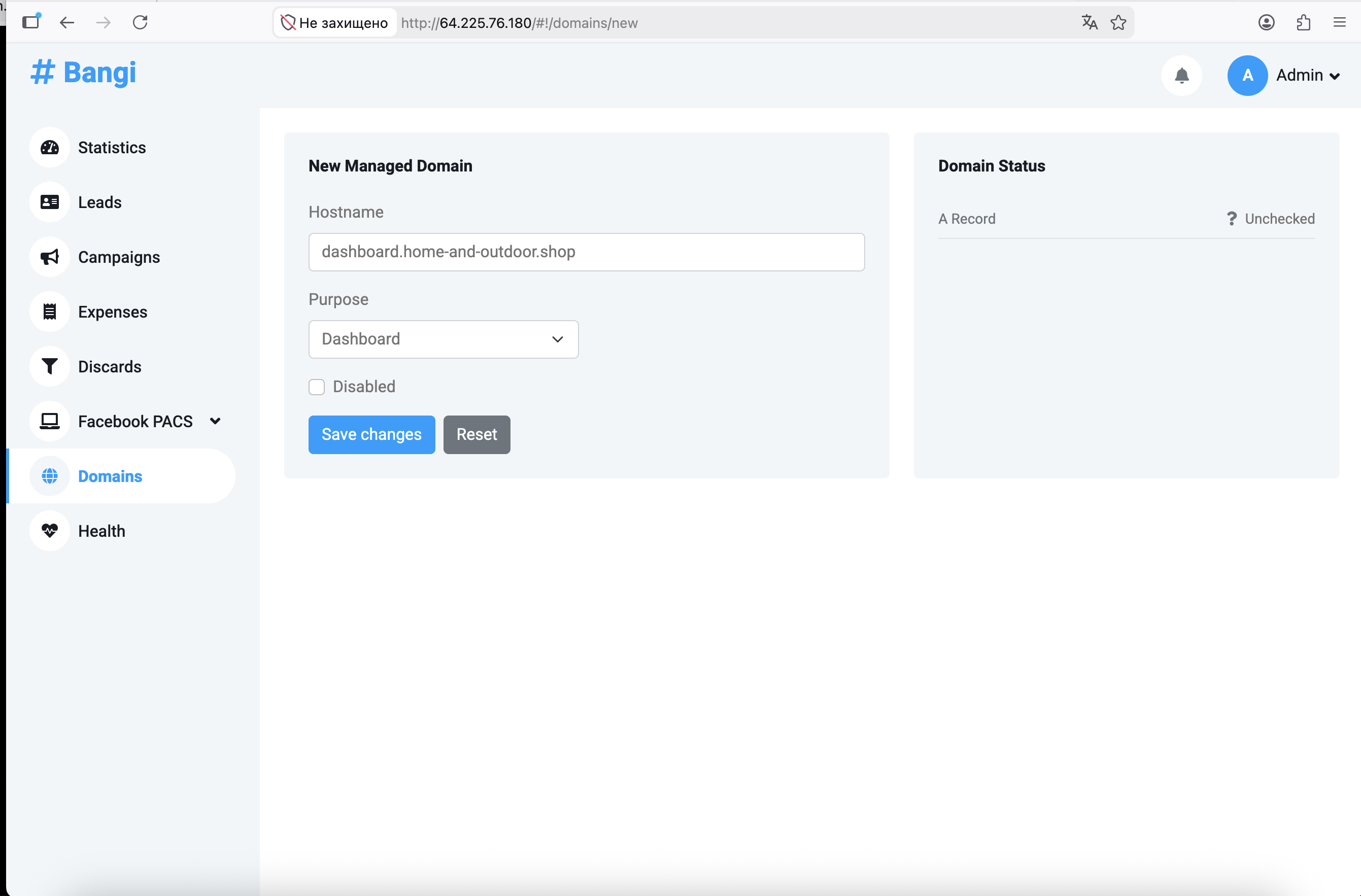
The dashboard saves the managed domain and starts background validation.
Step 3: Verify Domain Status
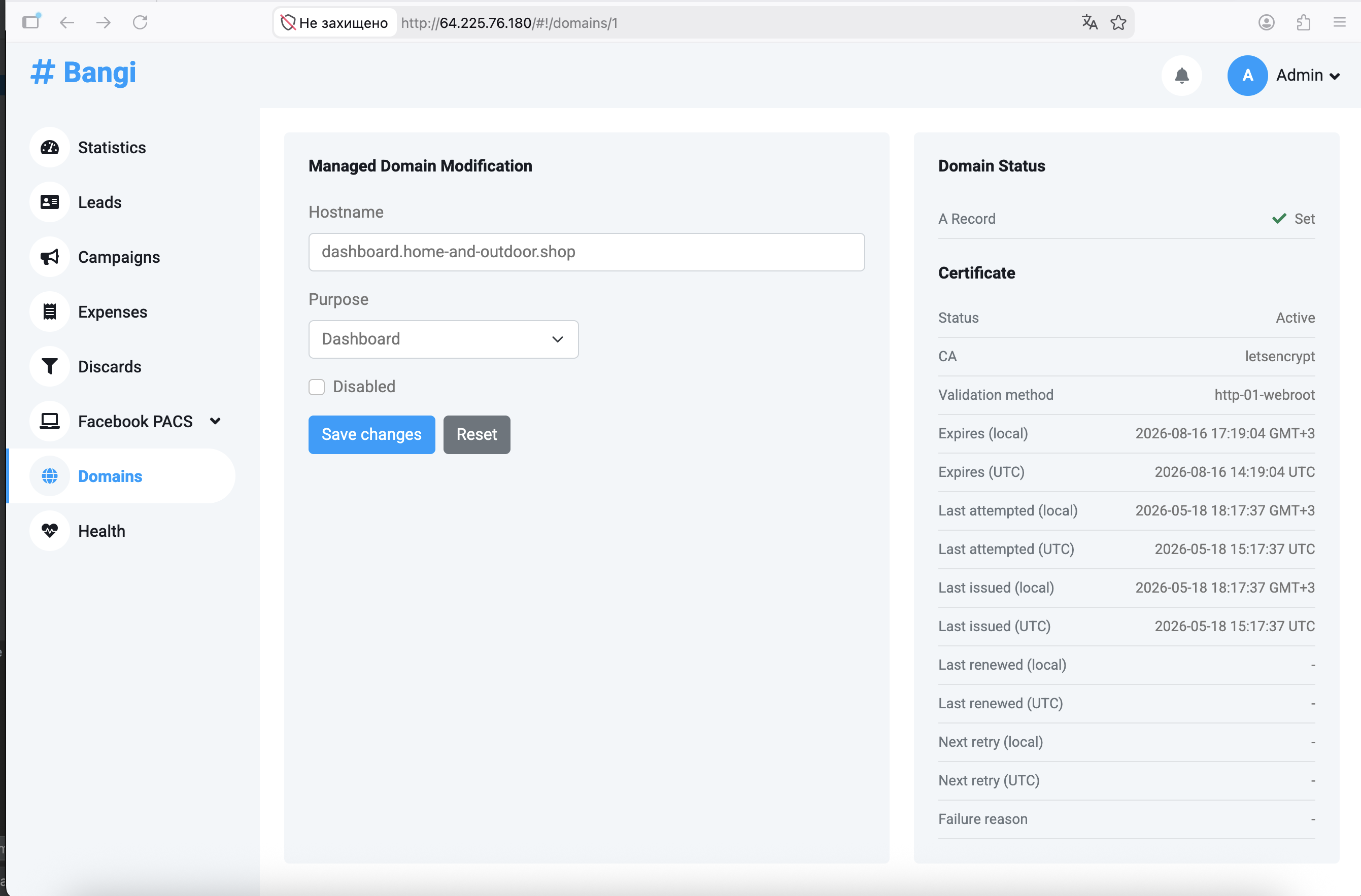
The tracker validates the DNS record before it enables HTTPS for the dashboard domain.
- Open
Domains. - Open the domain page for
dashboard.<your-domain>. - Check the domain status values.
Expected values:
| Field | Expected value | Meaning |
|---|---|---|
A Record |
Set |
DNS points the hostname to the tracker server |
Certificate / Status |
Active |
The tracker issued and installed the HTTPS certificate |
CA |
letsencrypt |
Let's Encrypt issued the certificate |
Validation method |
http-01-webroot |
The tracker used HTTP validation for certificate issuance |
Step 4: Open Dashboard by Domain
Open the dashboard URL in a browser:
https://dashboard.<your-domain>
Example:
https://dashboard.home-and-outdoor.shop
Sign in with your dashboard username and password.
Timing and Edge Cases
- If
A RecordisUnchecked, wait for the background DNS check to run. - If
A RecordisMissing, confirm that the DNS record value matches<server-ip>. - If
CertificateisPending, wait for the tracker to complete certificate issuance. Certificate provisioning can start only after DNS resolves to the tracker server. - Do not use the same hostname for dashboard and campaign traffic.
- Configure campaign domains in the campaign setup flow.