Campaign and Flow Setup
A campaign is the main tracking unit. It groups the traffic you buy or receive, the domain visitors open, the cost settings used for reporting, and the flows that decide what each visitor receives next.
Use one campaign when you want one shared report for a traffic source and offer combination. For example, if you buy traffic for one product from one ad network, create one campaign for that setup. If you later promote another product, use another traffic source, or need separate reporting, create a separate campaign.
This article explains how to create the Aureon Pulse Ring campaign, configure France and global flows, attach a campaign domain, and verify that traffic reaches the expected destination.
Key Concepts
Before creating the campaign, it helps to understand the main terms used in this guide.
| Term | Meaning |
|---|---|
| Campaign | The tracking container for one traffic source and offer setup. It stores cost settings, status mapping, default flow, and reporting context. |
| Campaign domain | The public domain or subdomain visitors open after clicking your ad or tracking link. It must point to the tracker server through a DNS A record. |
| Flow | A destination path inside a campaign. A flow decides what the visitor receives when its rule matches. |
| Landing page | A page shown to the visitor. In this guide, render flows use a ZIP archive that contains the landing page files. |
| Redirect | A delivery mode where the tracker records the visit and sends the browser to an external URL. |
| Render | A delivery mode where the tracker serves a landing page archive from the tracker server. The ZIP archive must contain index.php in its root directory. |
| Rule | A condition that decides when a flow can receive a visitor. This guide uses country-based example rules. |
| Postback integration | A server-to-server request from an advertiser or affiliate system back to the tracker. It tells the tracker that a conversion happened and can include a status value. |
The tracker uses this sequence for a campaign visit:
- A visitor opens the campaign domain in a browser.
- The tracker finds the campaign attached to that domain.
- The tracker detects visitor attributes, such as IP address, country, device type, and browser.
- The tracker evaluates enabled flows and their rules.
- The tracker selects the first matching flow.
- The tracker renders a landing page archive or redirects the visitor to an external URL.
- The tracker records visit data according to the campaign configuration.
The examples use the campaign Aureon Pulse Ring with two flows:
- France flow:
country == "FR" - Global flow:
country != "FR"
Both flows use the same campaign domain:
aureon-pulse-ring.home-and-outdoor.shop
Prerequisites
Before you start, verify that you have the following items.
| Requirement | Description | How to verify |
|---|---|---|
| Installed tracker | Tracker is installed and running | Open the dashboard URL |
| Dashboard access | You can sign in to the tracker dashboard | Sign in with a dashboard account |
| Campaign domain | You have a domain or subdomain for campaign traffic | Open the DNS provider settings |
| DNS access | You can create or edit DNS records | Add or view records at the domain provider |
| IP2Location database | Country detection is configured | Confirm the installer completed IP2Location setup |
| Landing page archive | ZIP archive with landing page files | Confirm the archive contains index.php in the root directory |
Step 1: Create the Campaign
A campaign connects traffic, cost settings, conversion status handling, domains, and flows into one reportable unit.
For the Aureon Pulse Ring example, the campaign receives traffic on one campaign domain and sends visitors to one of two rendered landing pages:
- Visitors from France receive the France landing page.
- Visitors outside France receive the global landing page.
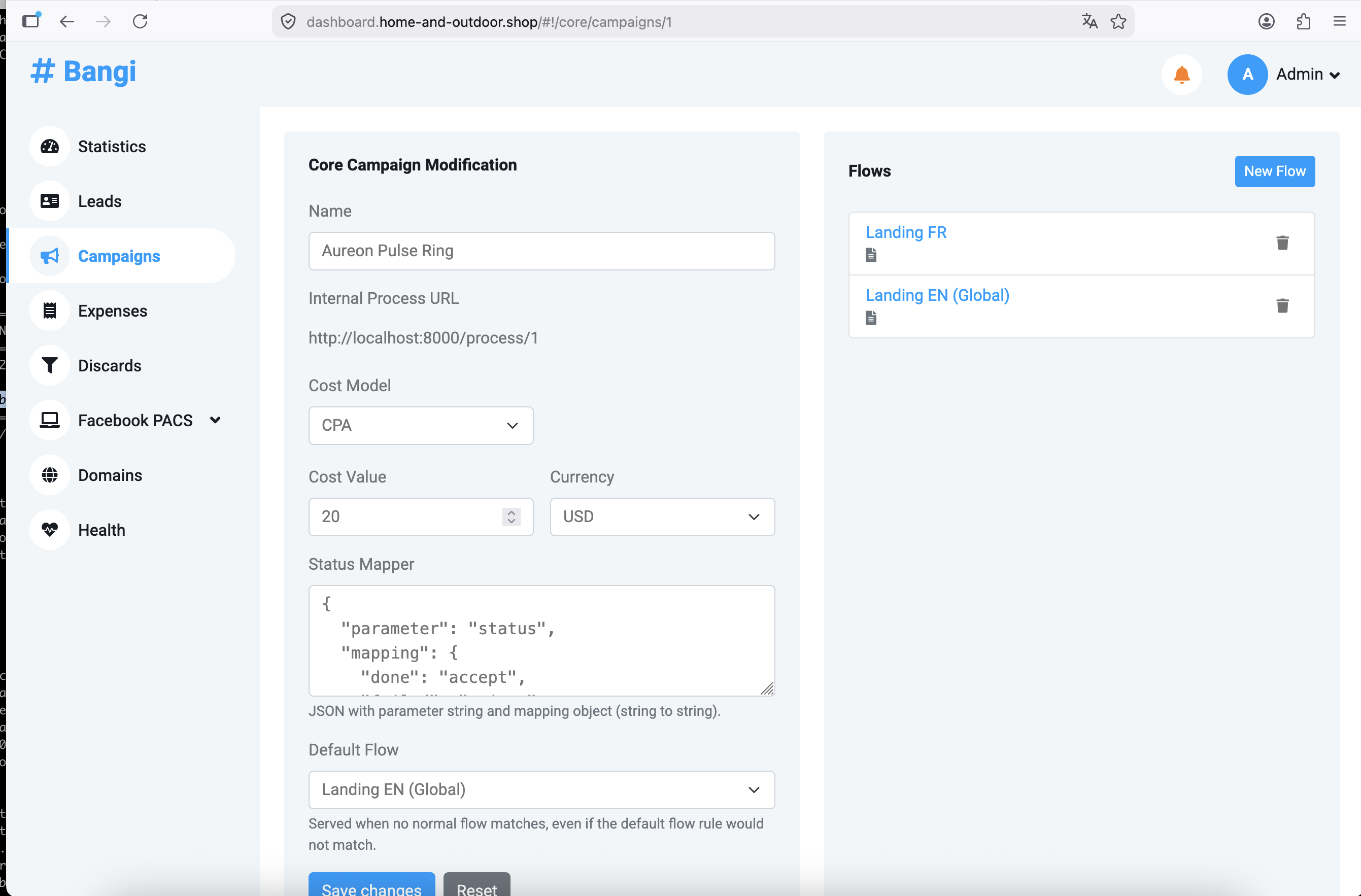
Campaign Fields
| Field | Description | Example usage |
|---|---|---|
Cost Model |
Defines how the tracker calculates traffic cost for the campaign. | Select the model that matches how your traffic source charges you. For CPA campaigns, this is usually CPA. |
Cost Value |
Defines the numeric cost value used with the selected cost model. | Enter the cost per visit, click, or action, depending on the selected model. |
Currency |
Defines the currency for cost values and campaign reporting. | Use USD, EUR, or another supported reporting currency. |
Status Mapper |
Optional mapping for postback statuses from an external system. | Map advertiser statuses to tracker statuses: accept, expect, reject, or trash. |
Default Flow |
Defines the fallback flow when no enabled flow rule matches the visitor. | Select a global flow so unmatched traffic still receives a destination. |
Status Mapper and Postbacks
Status Mapper is not required for a basic campaign. Use it when you integrate the tracker with an advertiser, affiliate network, CRM, or another external system that sends postbacks.
A postback is a server-to-server request from an external system to the tracker. It usually happens after a visitor converts. For example, a visitor clicks your campaign link, reaches an offer, submits a lead form, and the advertiser's system calls the tracker postback URL to report the conversion.
Use this postback URL format in the advertiser's system:
https://dashboard.<your-domain>/api/v2/track/postback?clickId=<clickId>&status=<status>
The API parameter must be clickId. Replace <clickId> and <status> with the placeholder syntax from the advertiser's system.
The status parameter tells the tracker what happened with the conversion. External systems can use many different status names, such as approved, sale, pending, rejected, or duplicate. The tracker stores statuses in four internal values:
| Tracker status | Use when |
|---|---|
accept |
The conversion is approved and should count as accepted revenue. |
expect |
The conversion is pending or waiting for approval. |
reject |
The conversion was rejected and should not count as accepted revenue. |
trash |
The conversion is invalid, duplicate, test traffic, or should be excluded from normal reporting. |
Example mapping:
Incoming status value |
Tracker status |
|---|---|
approved |
accept |
sale |
accept |
pending |
expect |
rejected |
reject |
duplicate |
trash |
JSON example:
{
  "parameter": "status",
  "mapping": {
    "approved": "accept",
    "sale": "accept",
    "pending": "expect",
    "rejected": "reject",
    "duplicate": "trash"
  }
}
The parameter value tells the tracker which postback parameter contains the external status. The mapping object translates the advertiser's status values into tracker statuses.
This mapping controls how postback results affect campaign reporting. It helps the tracker separate accepted revenue from expected revenue, rejected leads, and invalid or duplicate conversions.
Create the Campaign
- Open the tracker dashboard.
- Go to
Campaigns. - Create a new campaign.
-
Set the campaign name to:
Aureon Pulse Ring -
Configure the campaign cost fields:
Field Value Cost ModelSelect CPAwhen the campaign pays per approved actionCost ValueEnter the numeric cost value CurrencySelect the reporting currency -
Configure
Status Mapperonly if the campaign receives postbacks or status updates from an external system. - Save the campaign.
After saving, confirm that the campaign appears in the campaign list and opens without validation errors.
Step 2: Create Flows
A flow is a destination path inside a campaign. It tells the tracker what to do with a visitor after the visitor opens the campaign domain.
Flows are useful because not every visitor should always receive the same destination. You may want visitors from one country to see a local offer, visitors from another country to see a global offer, or repeat visitors to see a different landing page if they did not convert the first time.
Each flow has two important parts:
| Part | Meaning |
|---|---|
| Destination | Decides whether the tracker redirects the visitor to an external URL or renders a local landing page archive. |
| Rule | The condition that decides when the flow can be selected. |
Redirect or Render
Redirect/render controls how the tracker delivers the flow destination.
Use Redirect when the landing page or offer page is hosted outside the tracker. In this mode, the tracker receives the visit, records it, and sends the browser to the Redirect URL.
Use Render when the landing page is uploaded to the tracker as a ZIP archive. In this mode, the visitor stays on the campaign domain and the tracker serves the selected Render file.
In this example, both flows use the Render file tab and select a ZIP archive with the landing page.
| Mode | What the visitor receives | Required field |
|---|---|---|
| Redirect | Browser is sent to an external URL | Redirect URL, for example https://aureon.com/pulse-ring |
| Render | Browser receives a landing page archive from the tracker | Render file, a ZIP archive with index.php in the root directory |
Rules
A rule decides when a flow can receive a visitor. The tracker checks enabled flows and selects the first matching flow.
This guide uses two country-based example rules:
| Rule | Meaning |
|---|---|
country == "FR" |
Match visitors whose detected country is France. |
country != "FR" |
Match visitors whose detected country is not France. |
Rules can support more advanced routing than this example. Country routing is used here only to keep the first setup easy to follow.
Show Only Once Per Visitor
Show only once per visitor limits how often the same visitor can receive the same flow.
Use this option when you have multiple landing pages and want repeat visitors to move through different options over time. For example, if a visitor sees the first landing page today and does not convert to a lead, the next visit can skip that first flow and allow another flow to match. This gives another landing page a chance to convert the same visitor.
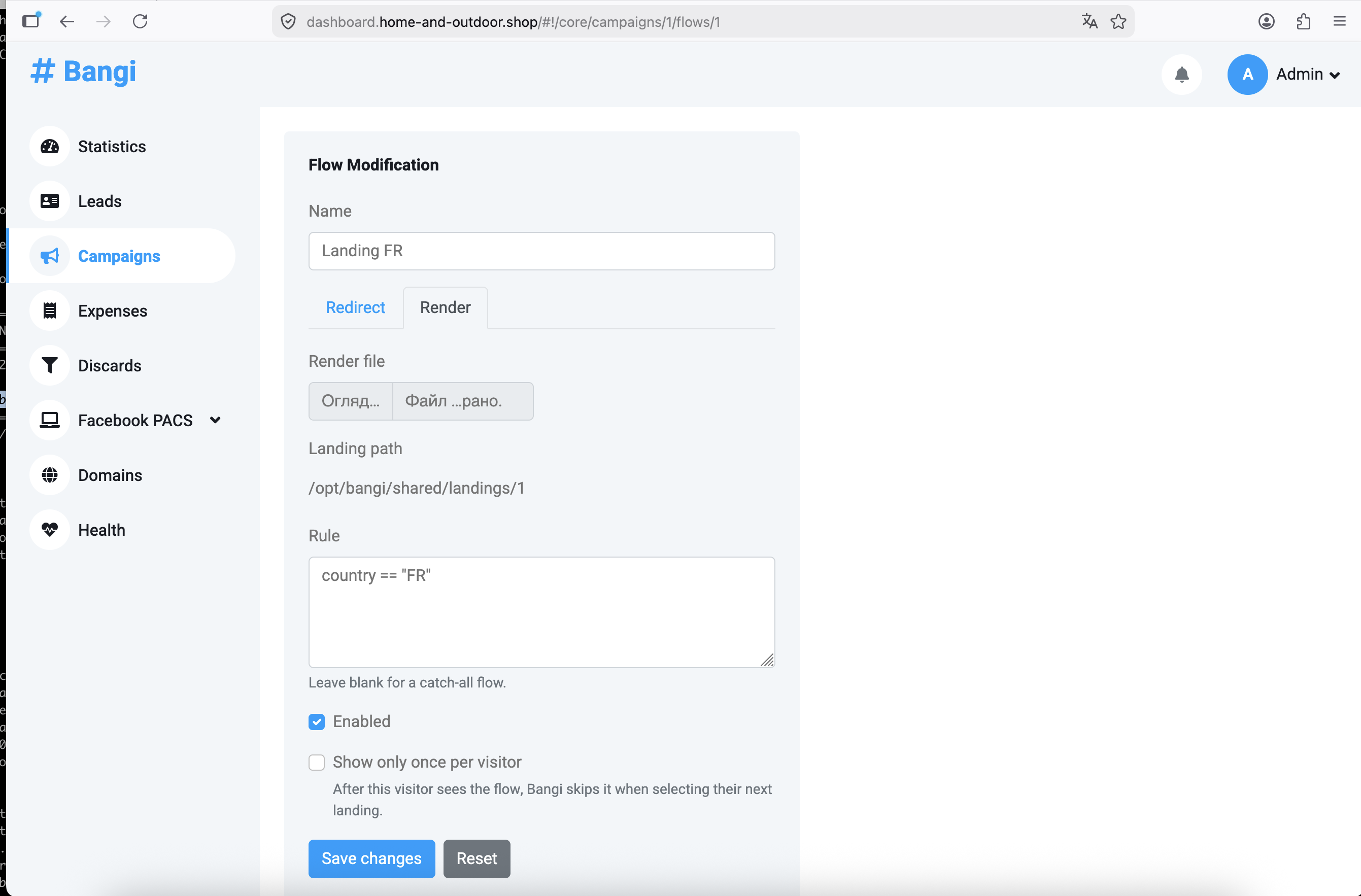
Step 2.1: Create the France Flow
Create the first flow for visitors from France.
- Open the
Aureon Pulse Ringcampaign. - Create a new flow.
- Configure the destination behavior:
| Field | Value |
|---|---|
Redirect/render |
Select Render |
Render file |
Select the ZIP archive for the France landing page |
Rule |
country == "FR" |
Show only once per visitor |
Since we have only one landing for France, keep it unfilled |
- Save the flow.
-
Confirm that the rule is shown as:
country == "FR"
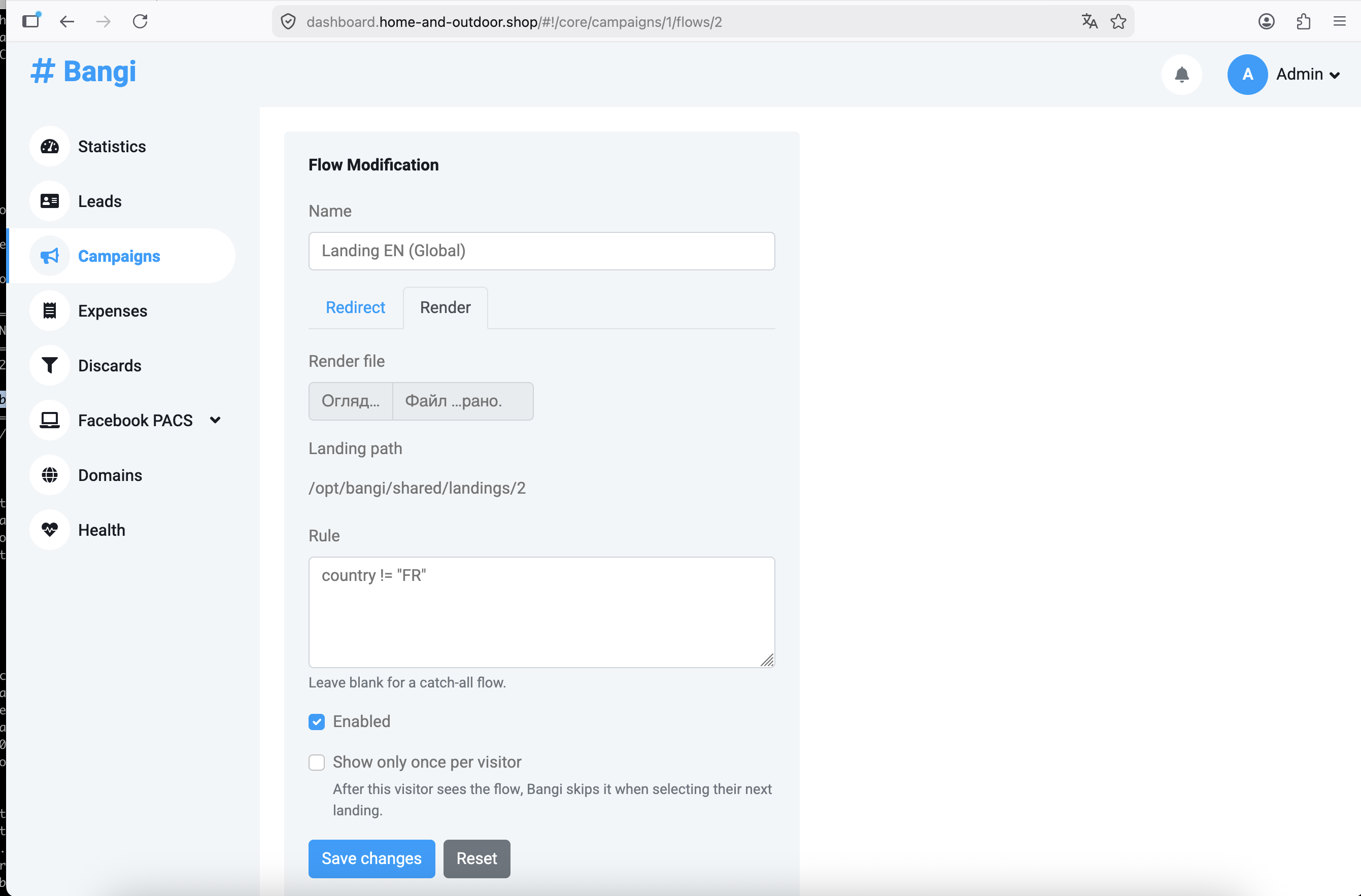
Step 2.2: Create the Global Flow
Create the second flow for visitors outside France.
- Open the
Aureon Pulse Ringcampaign. - Create another flow.
-
Configure the destination behavior:
Field Value Redirect/renderSelect RenderRender fileSelect the ZIP archive for the global landing page Rulecountry != "FR"Show only once per visitorSince we have only one global landing, keep it unfilled -
Save the flow.
-
Confirm that the rule is shown as:
country != "FR"
Step 3: Set the Default Flow
Set a default flow to define fallback behavior.
- Open the
Aureon Pulse Ringcampaign. - Find
Default Flow. - Select the global flow to receive unmatched traffic.
- Save the campaign.
Use a default flow when rules do not cover every possible visitor state. In this example, country != "FR" covers detected non-France traffic, but a default flow still protects the campaign when country detection fails or when flow rules change later.
Step 4: Configure the Campaign Domain
A campaign domain is the public hostname that visitors open. It must point to the tracker server through a DNS A record and have purpose Campaign in the tracker.
Configure the campaign domain after the campaign and flows are saved. This connects public browser traffic to the campaign routing configuration. The same domain can show different landing pages or redirects because the tracker evaluates the visitor attributes before it selects a flow.
This setup is similar to the dashboard domain setup:
- Create a DNS
Arecord at your domain provider. - Add the same hostname in the tracker dashboard.
- Set the domain purpose to
Campaign. - Select the campaign that should receive traffic from this domain.
Example campaign domain:
aureon-pulse-ring.home-and-outdoor.shop
- Open the DNS management page for your domain.
- Add an
Arecord for the campaign hostname. -
Set the record values:
Field Value Type AName aureon-pulse-ringValue <server-ip>Time to Live (TTL) Default value from your DNS provider -
Save the DNS record.
- Open the tracker dashboard.
- Go to
Domains. - Create a new domain.
-
Set
Hostnameto:aureon-pulse-ring.home-and-outdoor.shop -
Set
PurposetoCampaign. - Attach or select the
Aureon Pulse Ringcampaign to associate the domain with the campaign. - Save the domain.
- Open the saved campaign domain record in the dashboard.
- Wait until the domain status values show that DNS and certificate provisioning are complete.
Expected domain status values:
| Field | Expected value | Meaning |
|---|---|---|
A Record |
Set |
DNS points the hostname to the tracker server |
Certificate / Status |
Active |
The tracker issued and installed the HTTPS certificate |
CA |
letsencrypt |
Let's Encrypt issued the certificate |
DNS propagation and certificate issuance can take time. The tracker can issue the certificate only after the domain resolves to the tracker server.
Step 5: Open the Campaign Domain
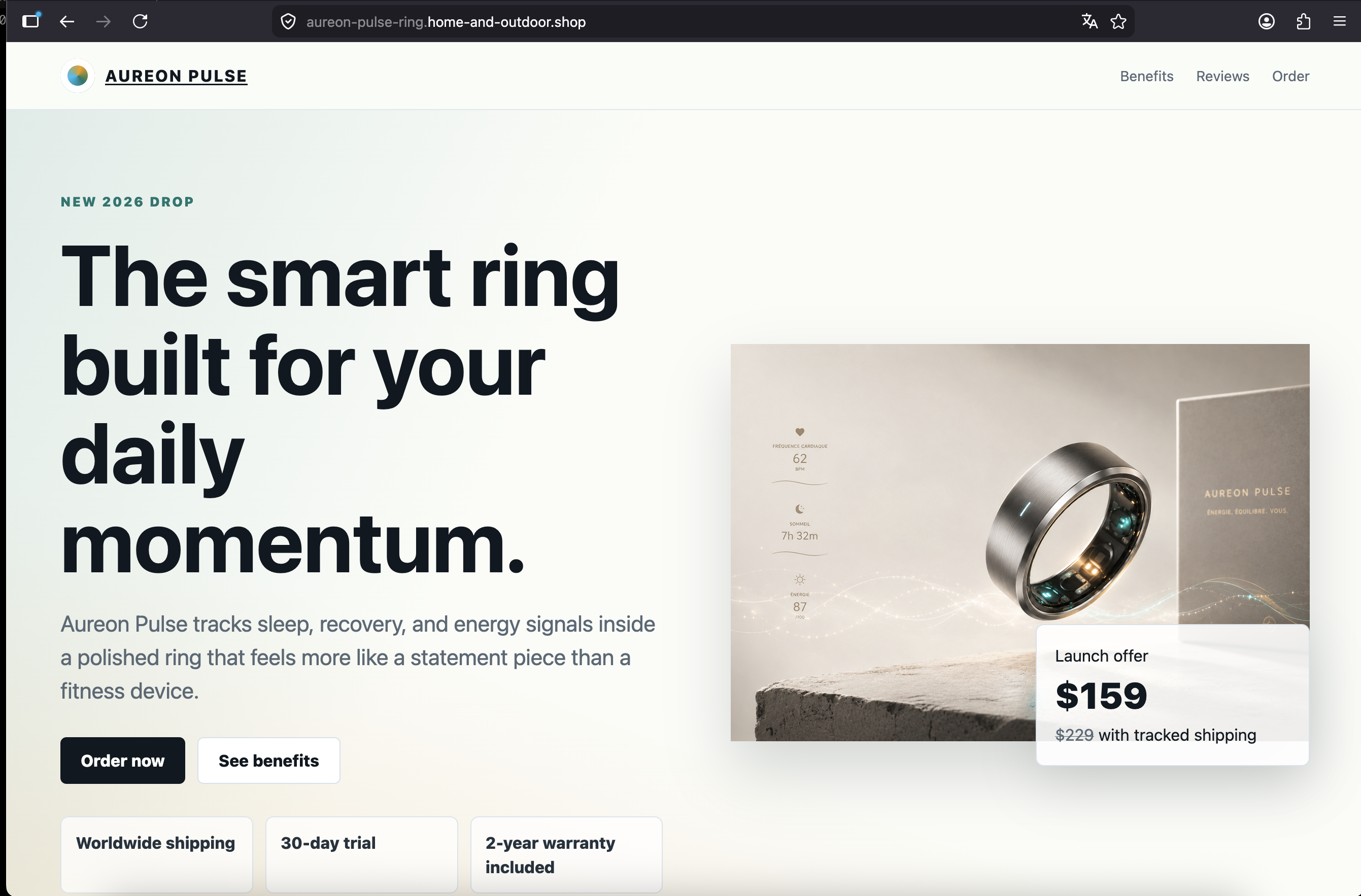
Open the campaign domain in a browser after the certificate becomes active:
https://aureon-pulse-ring.home-and-outdoor.shop
When the request comes from France, the same domain shows the France landing page.
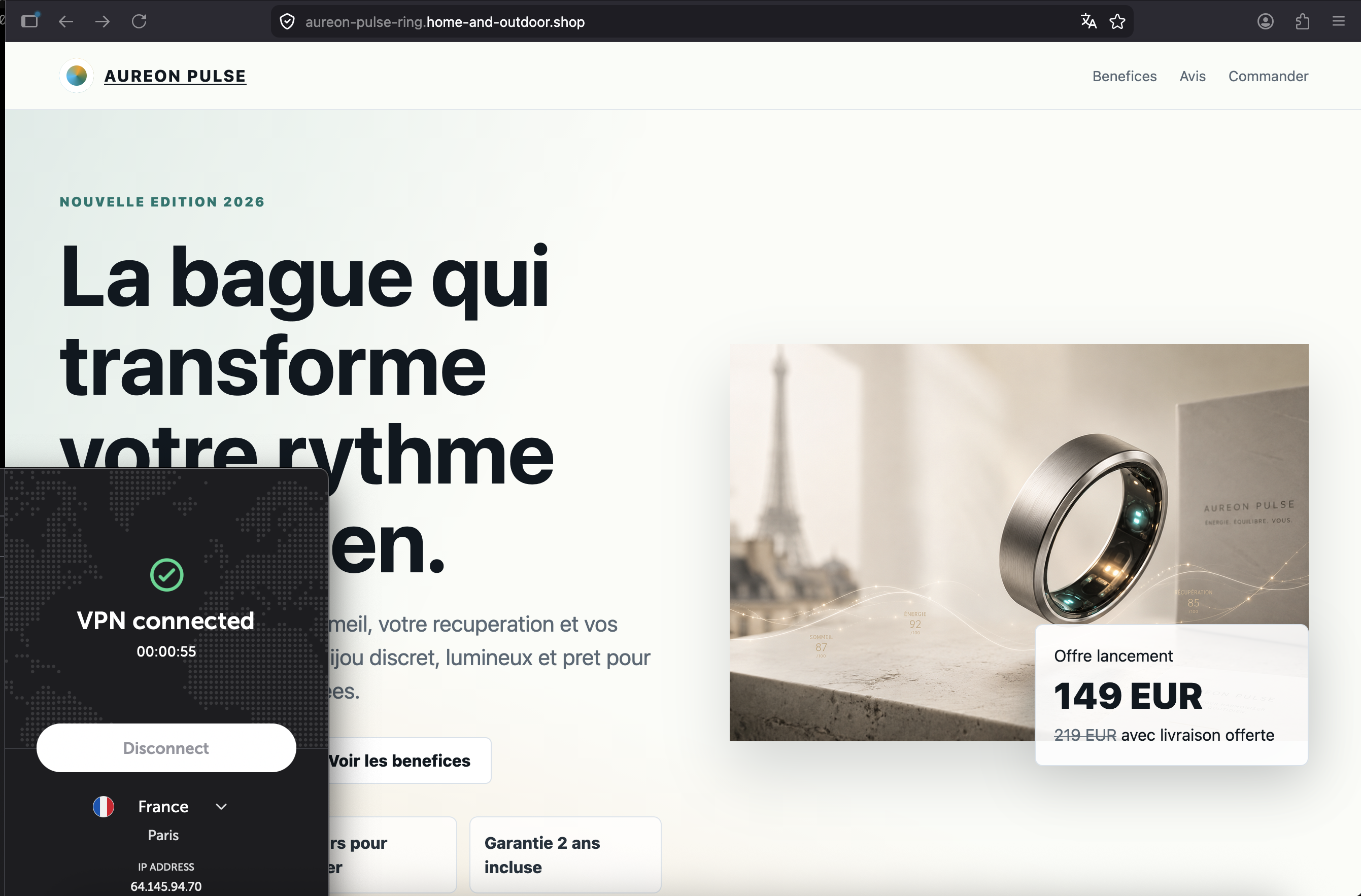
When the request comes from another country, the same domain shows the global landing page.
Verification
Use the following checks to verify the setup.
| Check | Expected result |
|---|---|
| Campaign exists | Aureon Pulse Ring opens in the dashboard |
| France flow exists | Flow rule is country == "FR" |
| Global flow exists | Flow rule is country != "FR" |
| Default flow is set | Campaign has a fallback flow |
| Campaign domain resolves | DNS A record points aureon-pulse-ring.home-and-outdoor.shop to <server-ip> |
| Certificate is active | Campaign domain opens with HTTPS and no browser certificate warning |
| France traffic | Browser shows the France landing page |
| Non-France traffic | Browser shows the global landing page |
Edge Cases
- If country detection fails, the tracker may use the default flow.
- If multiple enabled flows match the same visitor, flow order can affect the selected destination.
- If no flow matches and no default flow exists, the visitor may receive an empty page.
- If
Show only once per visitoris enabled, repeat visits from the same visitor may skip that flow. - If the certificate is not active, the browser may show an HTTPS warning or fail to open the domain.
Troubleshooting
| Problem | Cause | Resolution |
|---|---|---|
| Campaign domain does not open | DNS does not point to the tracker server | Verify the DNS A record value and wait for propagation |
| Browser shows a certificate warning | HTTPS certificate is not active | Confirm that A Record is Set, then wait for certificate provisioning |
| France visitor sees the global page | Country detection does not return FR, or the France flow is disabled |
Check IP geolocation data, flow status, and the country == "FR" rule |
| Non-France visitor sees the France page | Rule configuration is incorrect | Confirm that the France flow uses country == "FR" and the global flow uses country != "FR" |
| Visitor receives an empty page | No enabled flow matches and no default flow is set | Set Default Flow to the global flow |
| Redirect flow does not open the destination | Redirect URL is missing or malformed |
Use a complete URL with https:// or http:// |
| Render flow does not show the page | Render file archive is missing, unavailable, or does not contain index.php in the root directory |
Upload a ZIP archive with index.php in the root directory |